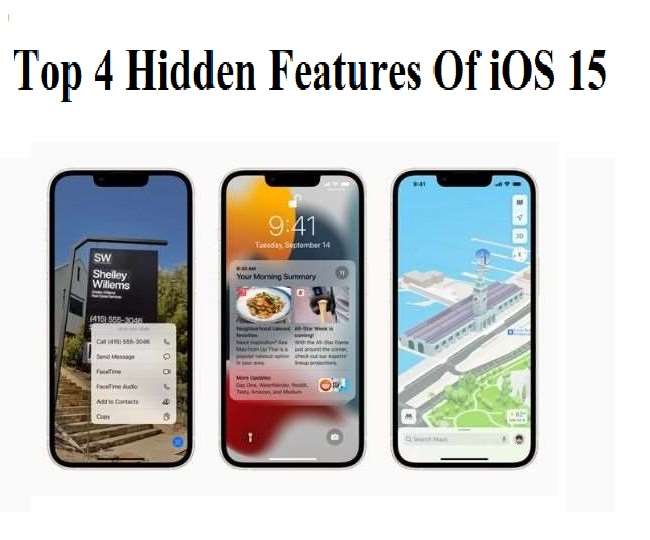
New Delhi | Jagran Technology Desk: Tech giant Apple had introduced its new iOS 15 operating systems recently and the users are enjoying the latest update and its features. The new operating system offers some special features to users like focus, safari, and drag and drop options, etc.
However, there are some secret features in the latest operating system about which a lot of users don't know. These interesting and secret features in iOS 15 will definitely enhance the experience of the user while using the smartphone.
Here’s a list of hidden privacy features that iOS offer its users:
Mail Privacy Protection
The new iOS 15 offers a hidden feature called mail privacy protection through which a user can hide the information like their IP address and email openings. According to Apple, this feature will ensure users' privacy and prevent any data leakage.
Here’s how you can activate this feature
Step 1: Go to the iPhone settings option
Step 2: Go to Mail and click on the privacy protection feature
Step 3: Then click on protect mail activity option
Step 4: Now, the feature will be activated and users can easily use them.
Record App Activity
This feature of iOS 15 monitors every app present in the smartphone. Record app activity feature will notify the user which app is using their device's camera.
Here’s how you can activate this feature
Step 1: Go to iPhone settings
Step 2: Click on the privacy option and tap on record app activity
Step 3: Once done, the feature will be activated and after seven days users will be connected to the app.
Verification Codes
With the help of the verification codes feature, a user can easily set a verification code on the apps with a password like two-factor authentication.
Here’s how you can activate this feature
Step 1: Go to the phone's settings section, and then go to the password
Step 2: Here you can see the password that you have saved
Step 3: Now, click on the app on which you want the verification code to be set.
Step 4: This will lead to a new page
Step 5: Here, you will have two options in which you can set the code -- the first is the setup key, and the second is the QR code scan.
Step 6: If the app which you have selected supports the 2FA verification code, then open the application and set up the key

This is an archived article published on Oct 22, 2021. The information may be outdated.
iOS 15 includes THESE hidden features that you should not miss; check details here
However, there are some secret features in the latest operating system about which a lot of users don't know. These interesting and secret features in iOS 15 will definitely enhance the experience of the user while using the smartphone.
- By Mallika Mehzabeen
- Fri, 22 Oct 2021 05:04 PM (IST)
- Source:JND